Adding Text To Image
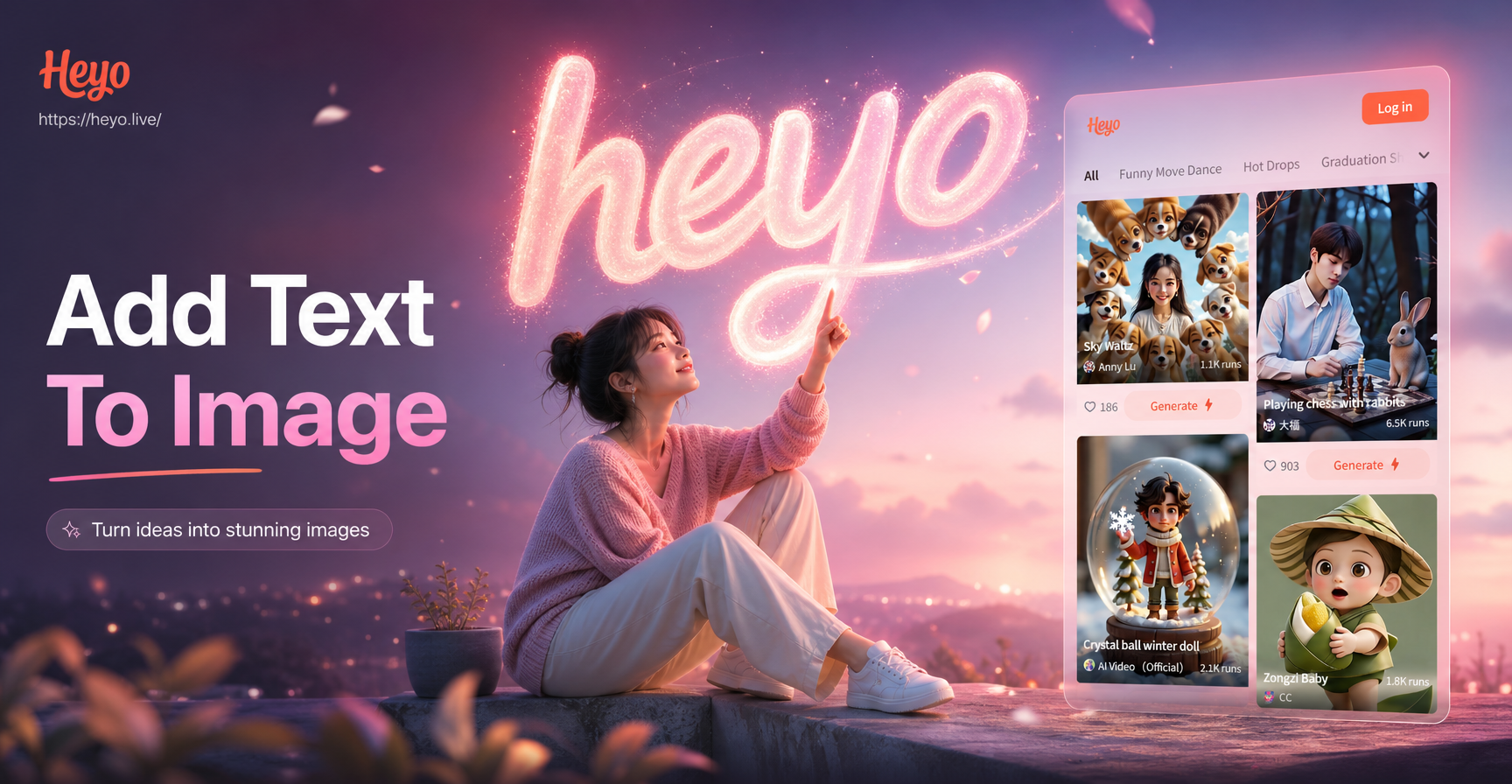
Top Text Overlay Filters
Discover the perfect style for your message, from elegant scripts to bold graphic fonts.
Why Our Text-to-Image Tool Stands Out
Go beyond basic text tools with AI-powered design intelligence and creative flexibility.
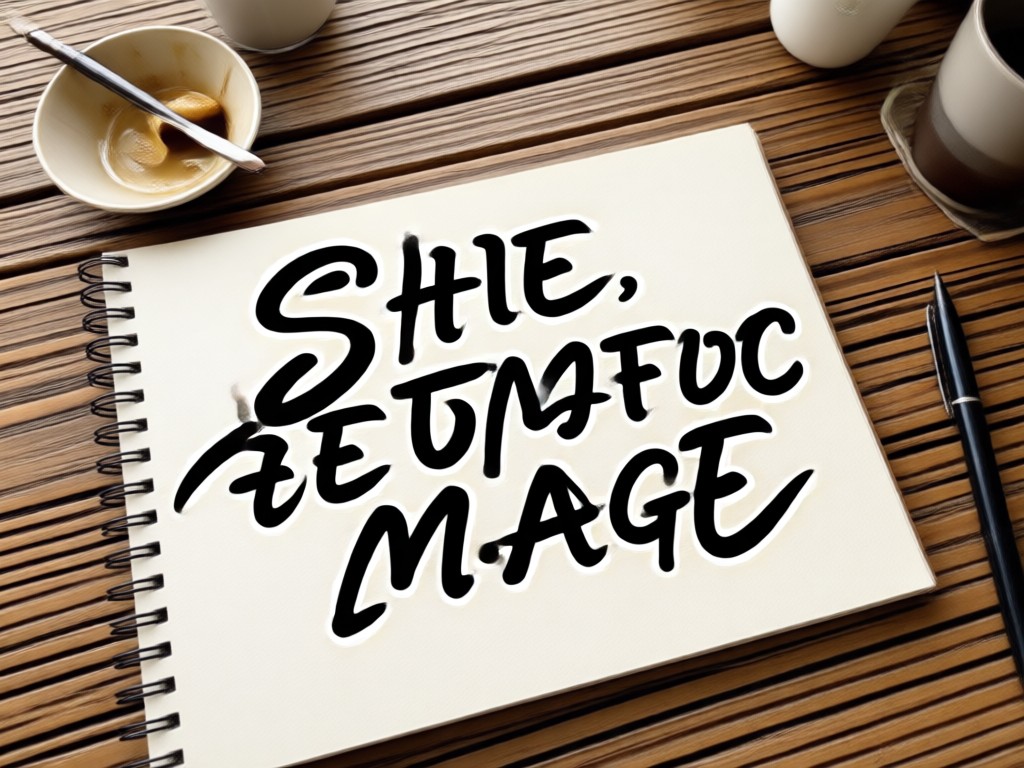
Vast Font Library
Access hundreds of unique fonts, from classic serifs and elegant scripts to modern display and handwritten styles. Every option is optimized for clear, beautiful overlay on any image background.
Vast Font Library
Access hundreds of unique fonts, from classic serifs and elegant scripts to modern display and handwritten styles. Every option is optimized for clear, beautiful overlay on any image background.
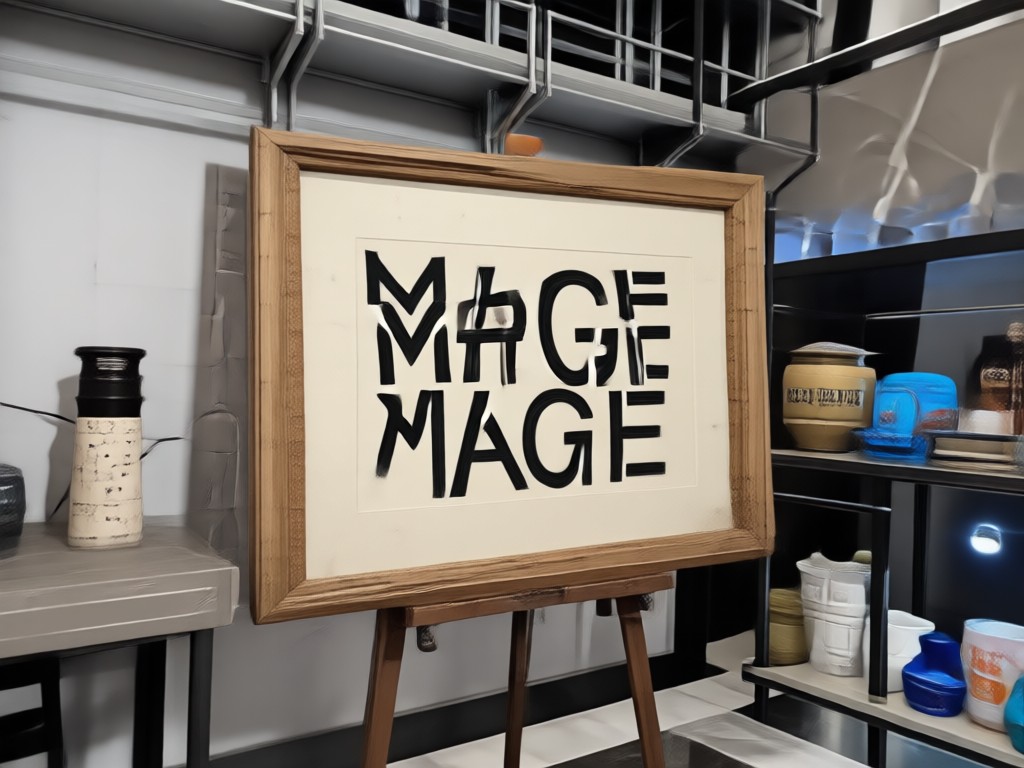
AI Style Matching
Our AI suggests font styles, colors, and placements that complement your image's mood and composition. Get professional-looking results that feel cohesive and intentional, not just pasted on.
AI Style Matching
Our AI suggests font styles, colors, and placements that complement your image's mood and composition. Get professional-looking results that feel cohesive and intentional, not just pasted on.
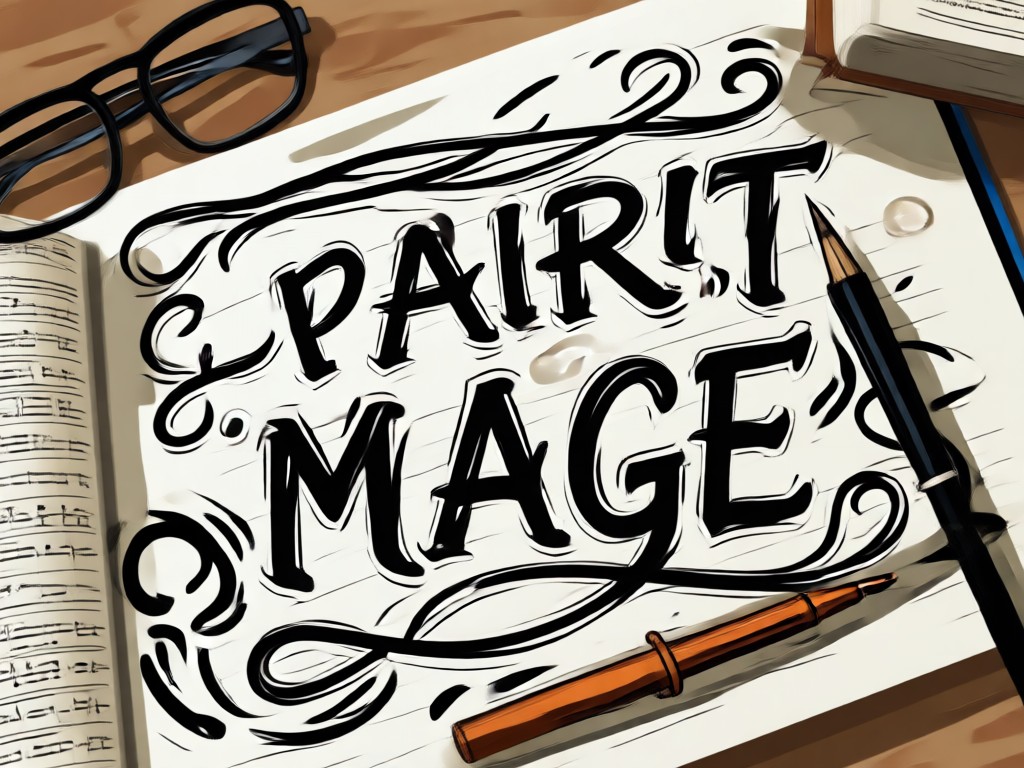
Advanced Text Effects
Apply shadows, outlines, gradients, and 3D effects to make your text stand out. Adjust opacity, blending modes, and layer positioning for truly custom and eye-catching designs.
Advanced Text Effects
Apply shadows, outlines, gradients, and 3D effects to make your text stand out. Adjust opacity, blending modes, and layer positioning for truly custom and eye-catching designs.
Inspiration Gallery: Text on Image Ideas
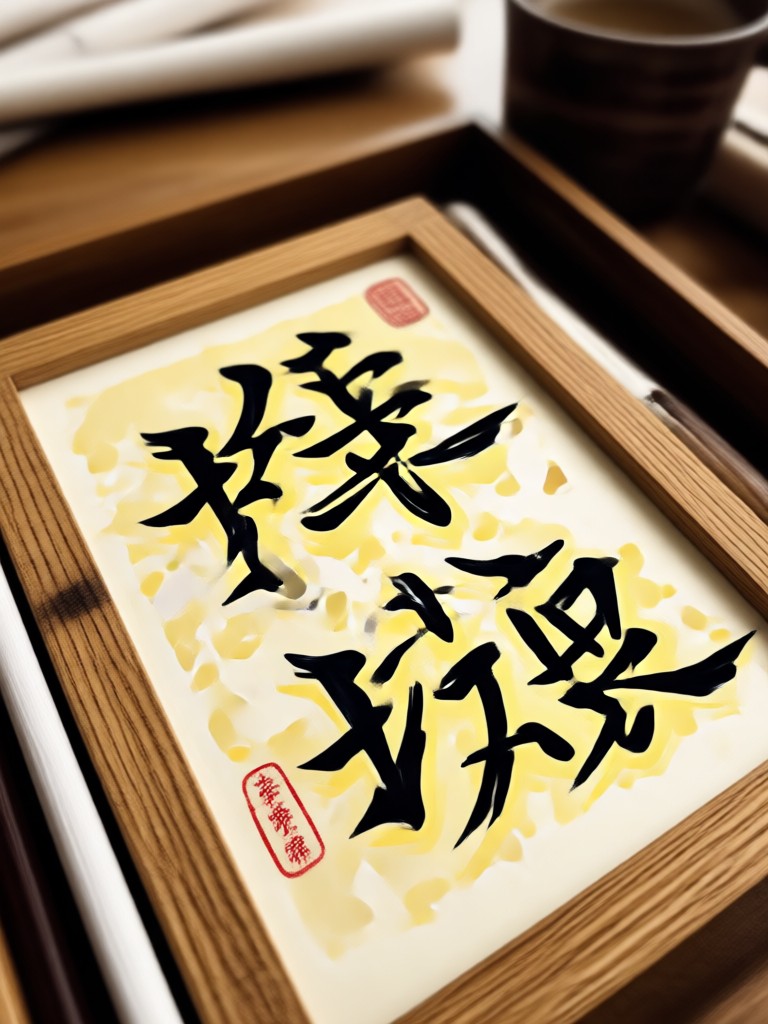
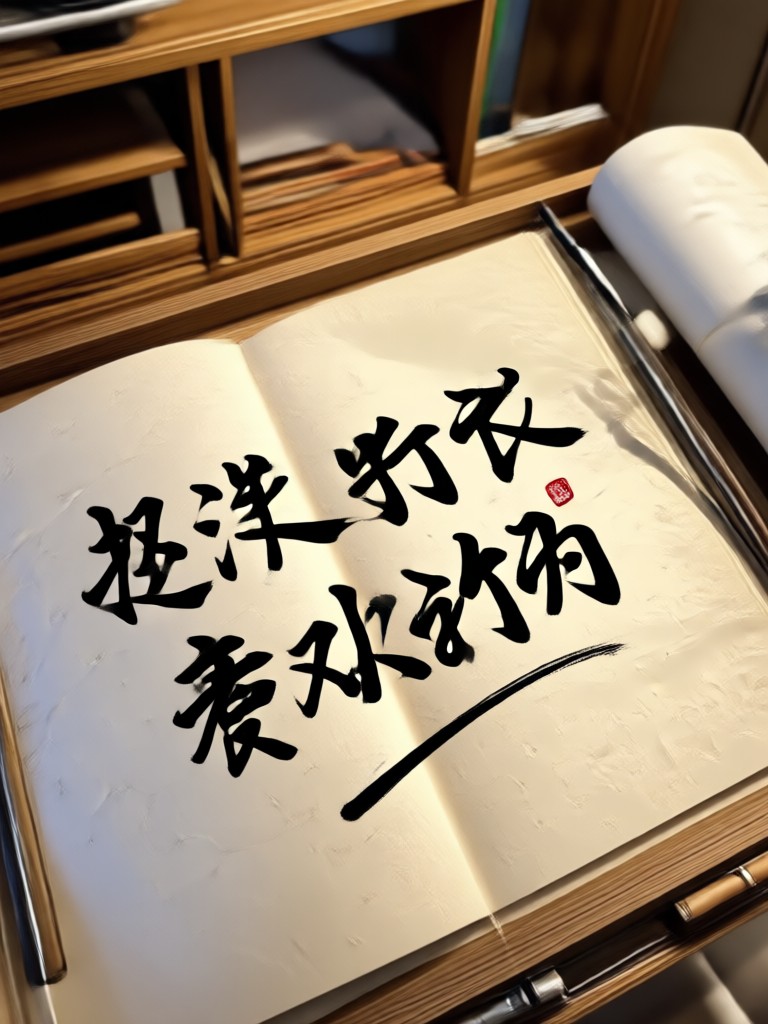
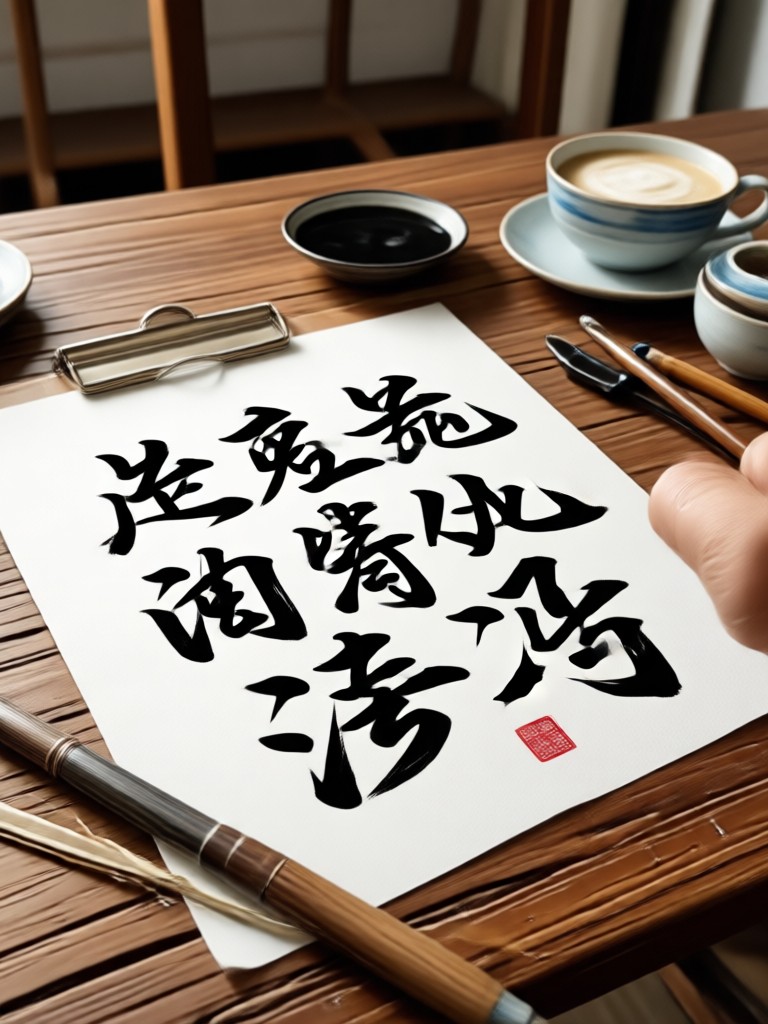
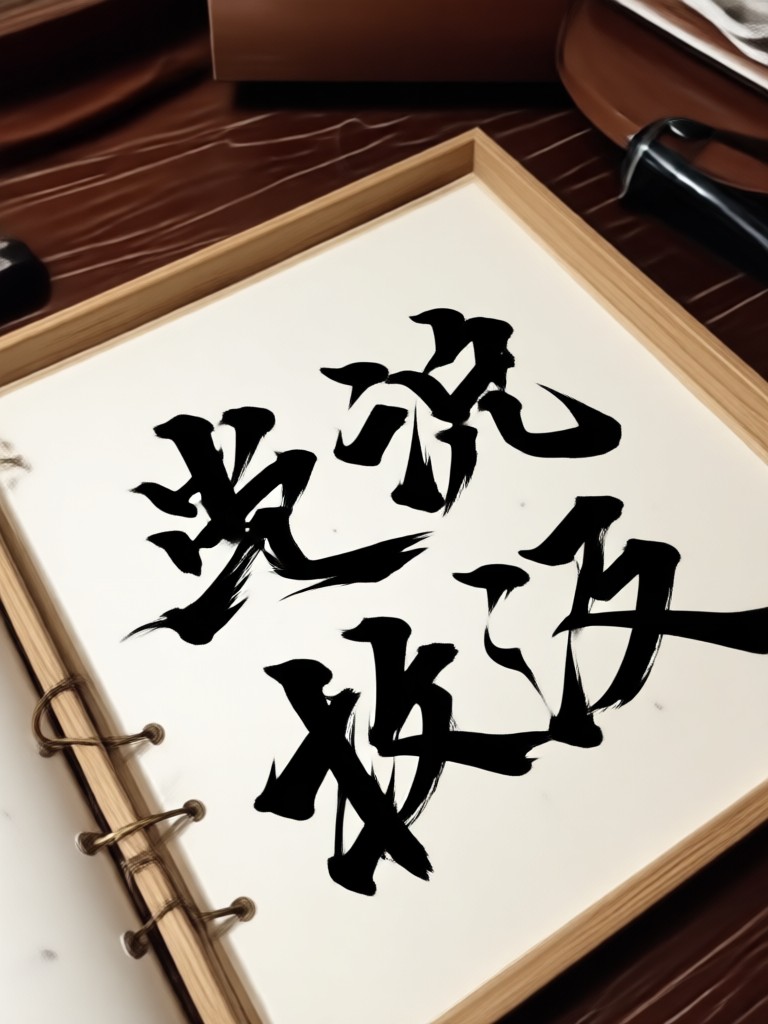
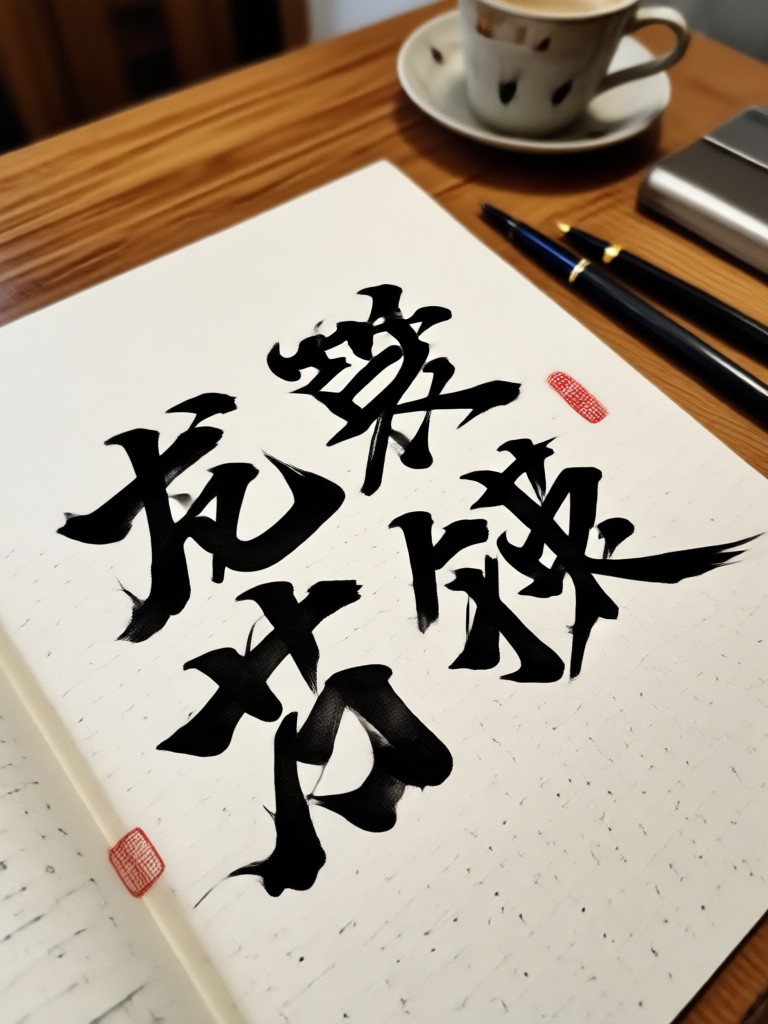
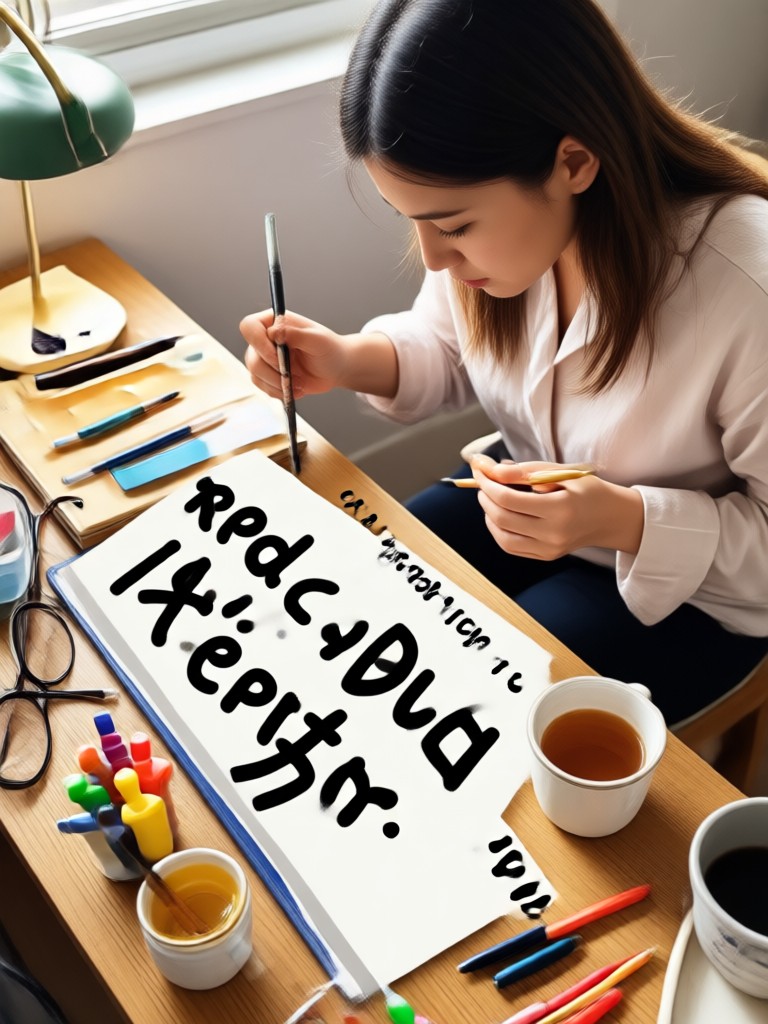
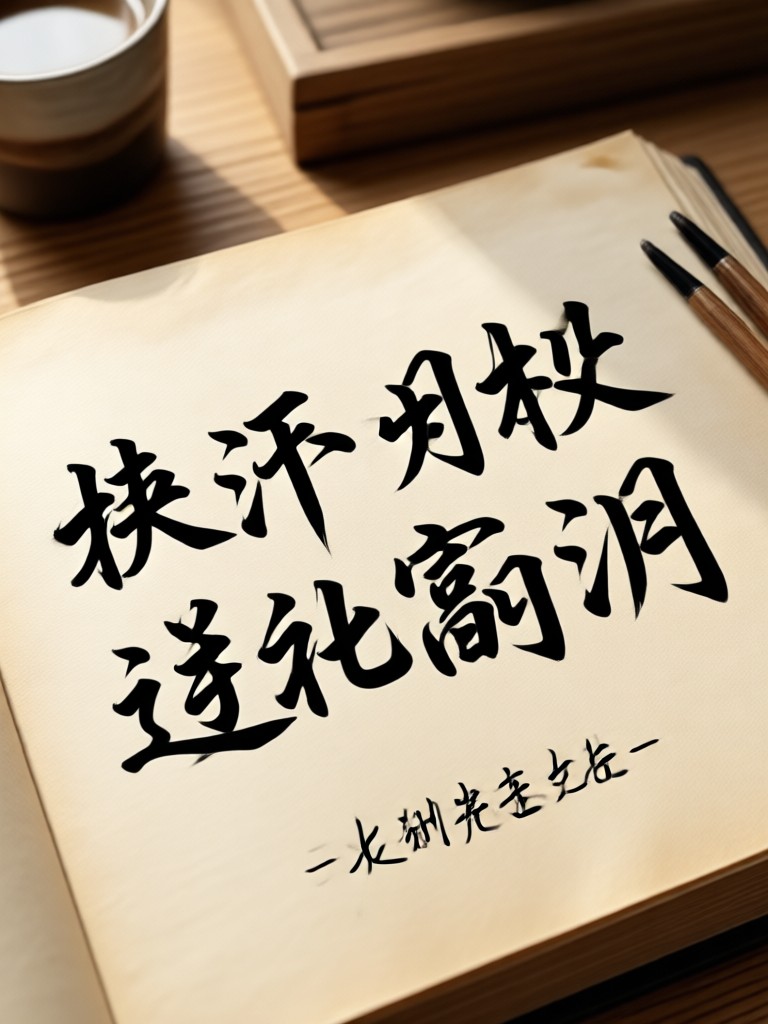
See how others are creatively combining photos and text. From inspirational quotes on landscapes to funny captions on portraits.
How to Add Text to Your Image in 3 Steps
Create stunning text overlays quickly and easily with our intuitive mobile app.

Step 01.
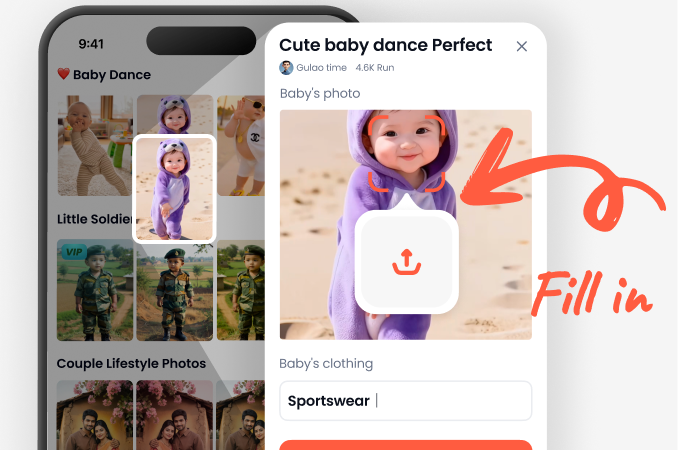
Download the HeyO app for free. Open it and tap the 'Add Text' tool, then upload or take a photo directly within the app.
Step 02.
Type your message and browse the font library. Use sliders to customize size, color, spacing, and apply effects like shadows or outlines.
Step 03.
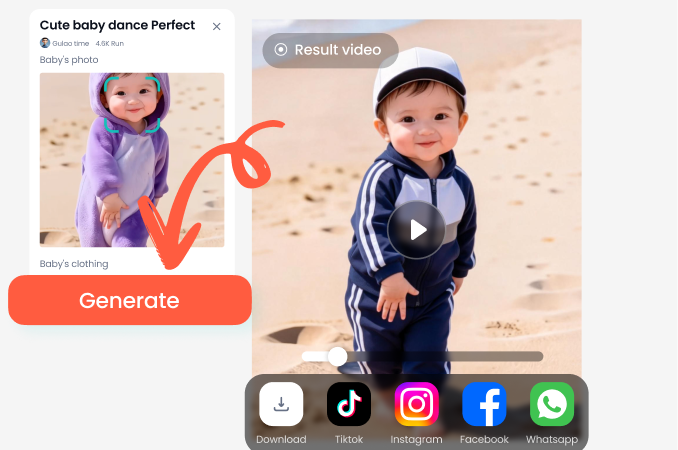
Drag to position your text perfectly. Tap generate to finalize your design, then save it to your device or share it directly to social platforms.
What Our Creative Community Says
A total game-changer for my Instagram
I run a small business page and needed to create eye-catching promo graphics fast. This tool lets me add perfect text to my product photos in under a minute. The font selection is incredible.
Makes meme creation effortless and fun
My friends love the memes I make now. I just pick a funny picture from my camera roll, add the perfect caption with a bold font, and it's an instant hit in our group chats. So simple.
Perfect for personalizing travel photos
I add location names and dates to my vacation photos before printing them or posting. The elegant script fonts make my albums look professionally designed. It's become part of my travel routine.
Add Text On The Go
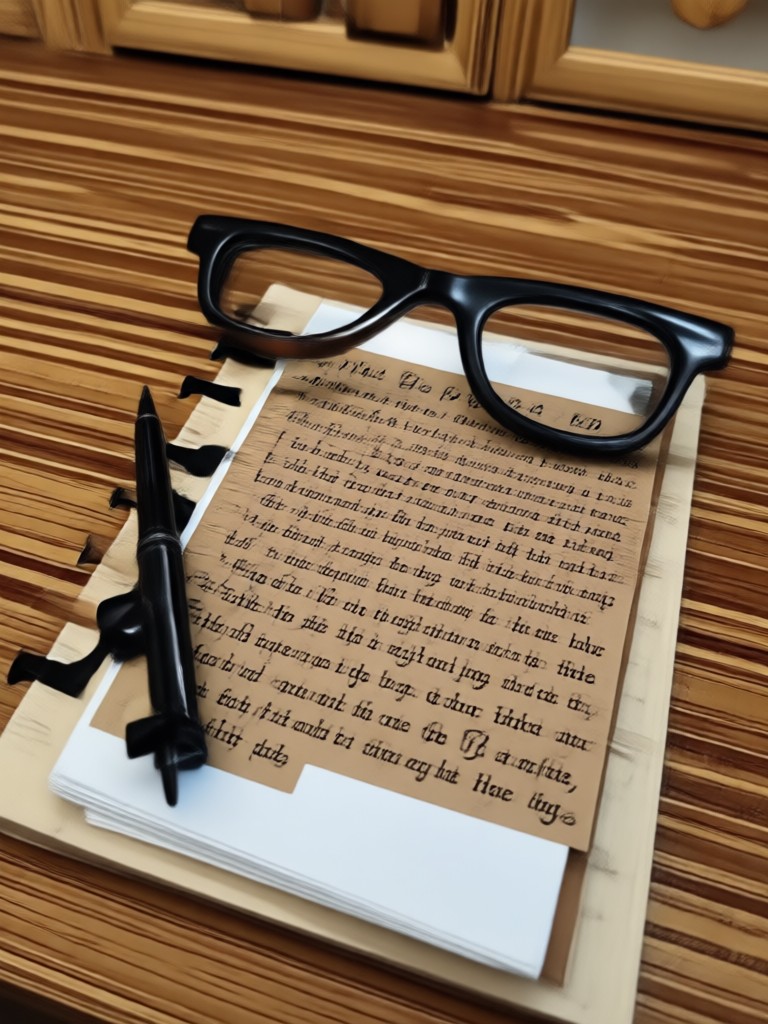
Your ultimate mobile design studio. Transform any photo into a shareable masterpiece with custom text, anywhere, anytime.

Text to Image FAQs
Get quick answers to common questions about adding text, customizing fonts, and creating your perfect design.
More Topics You May Like
Explore more topics you may like and discover fresh ideas tailored to your interests.
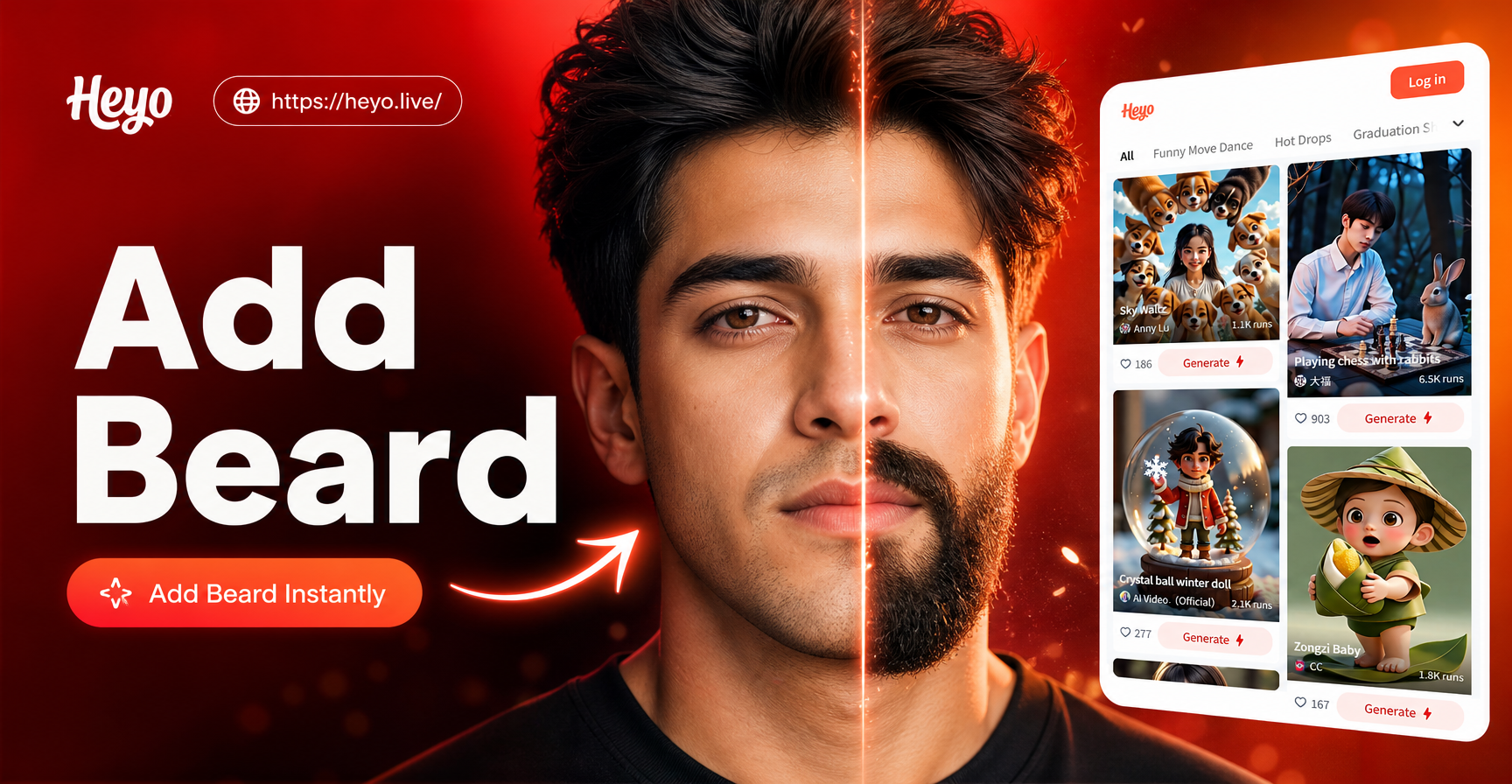
Add a Beard to Your Photo in Seconds Online
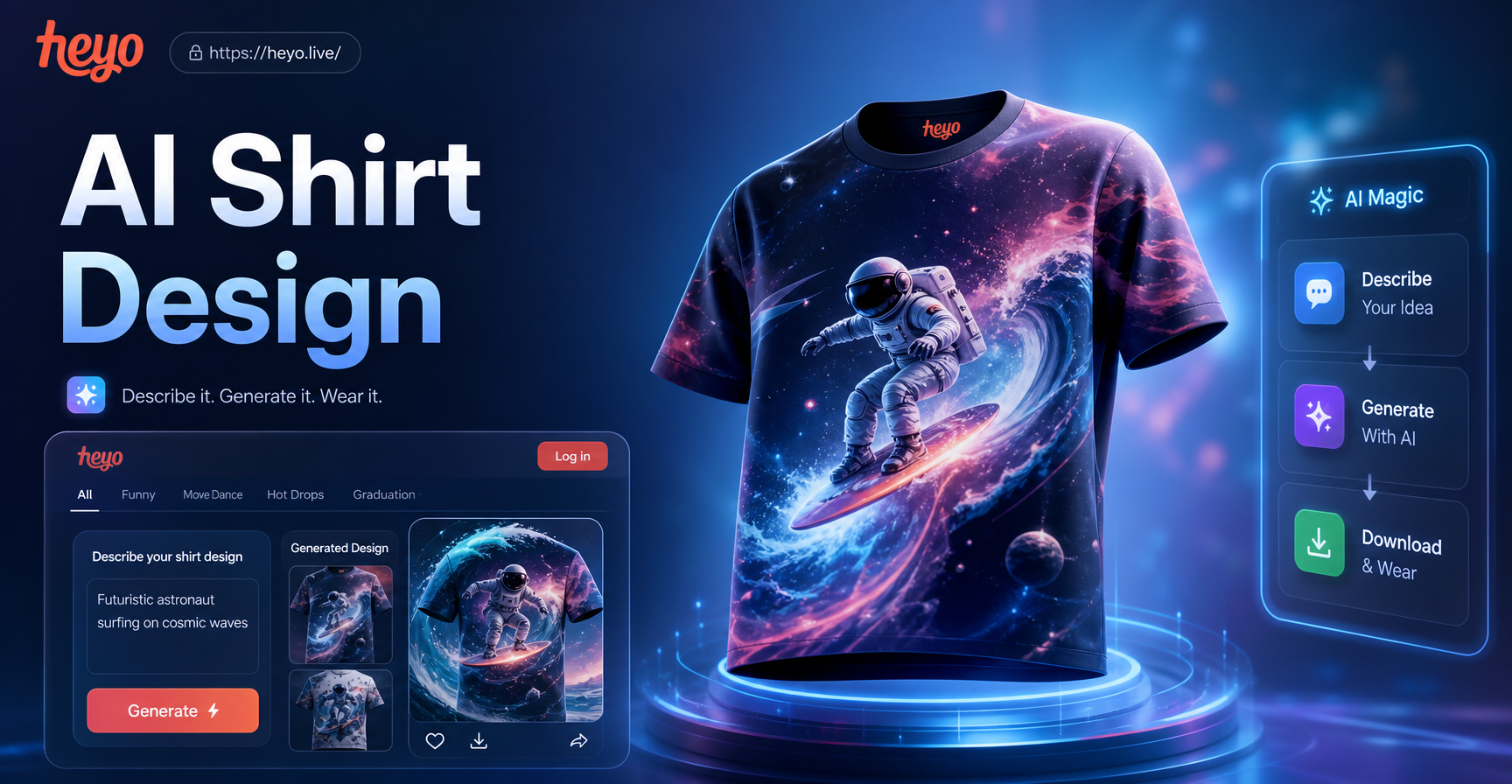
AI T-Shirt Design Maker | Create Custom Designs Instantly
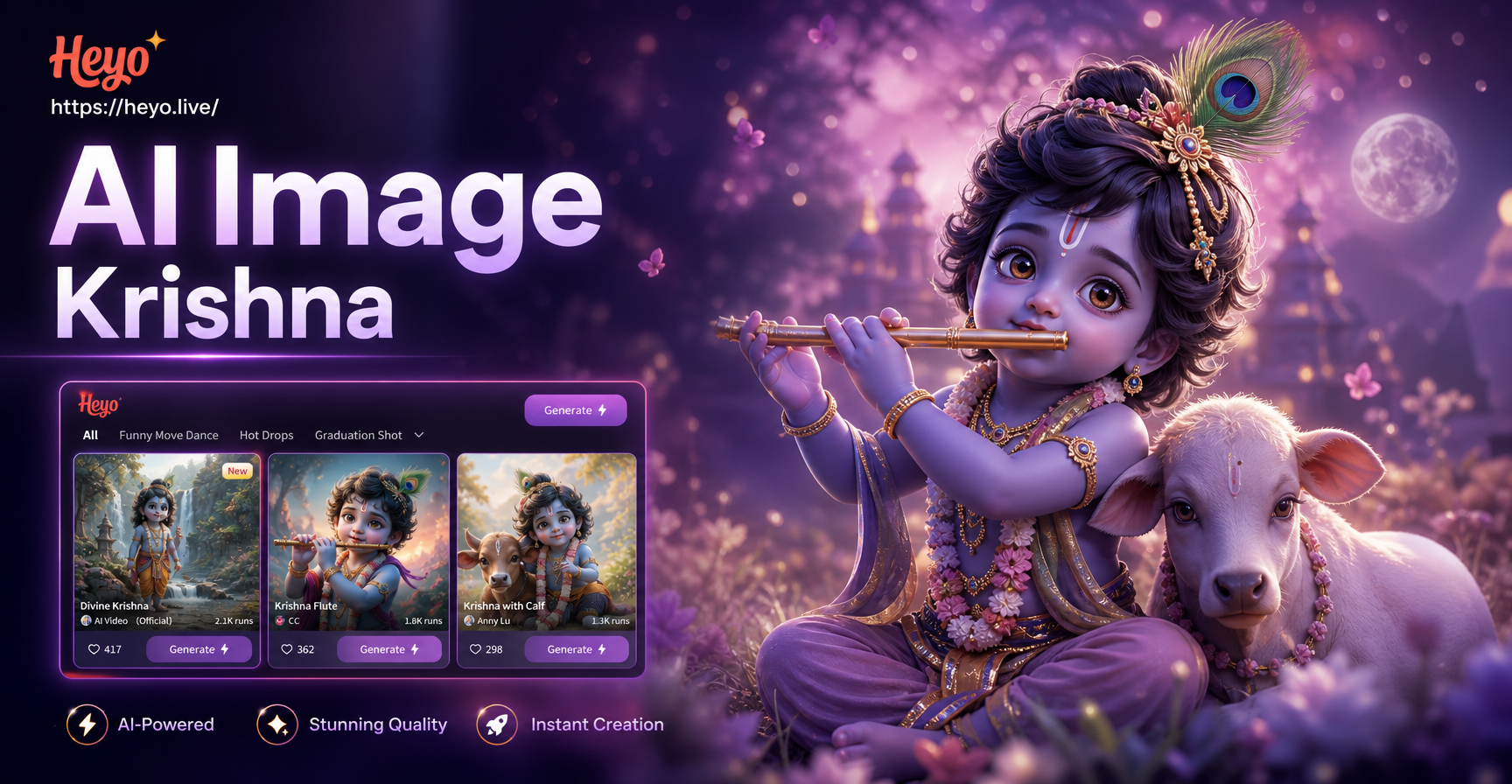
Create Divine Art: AI Krishna Image Generator
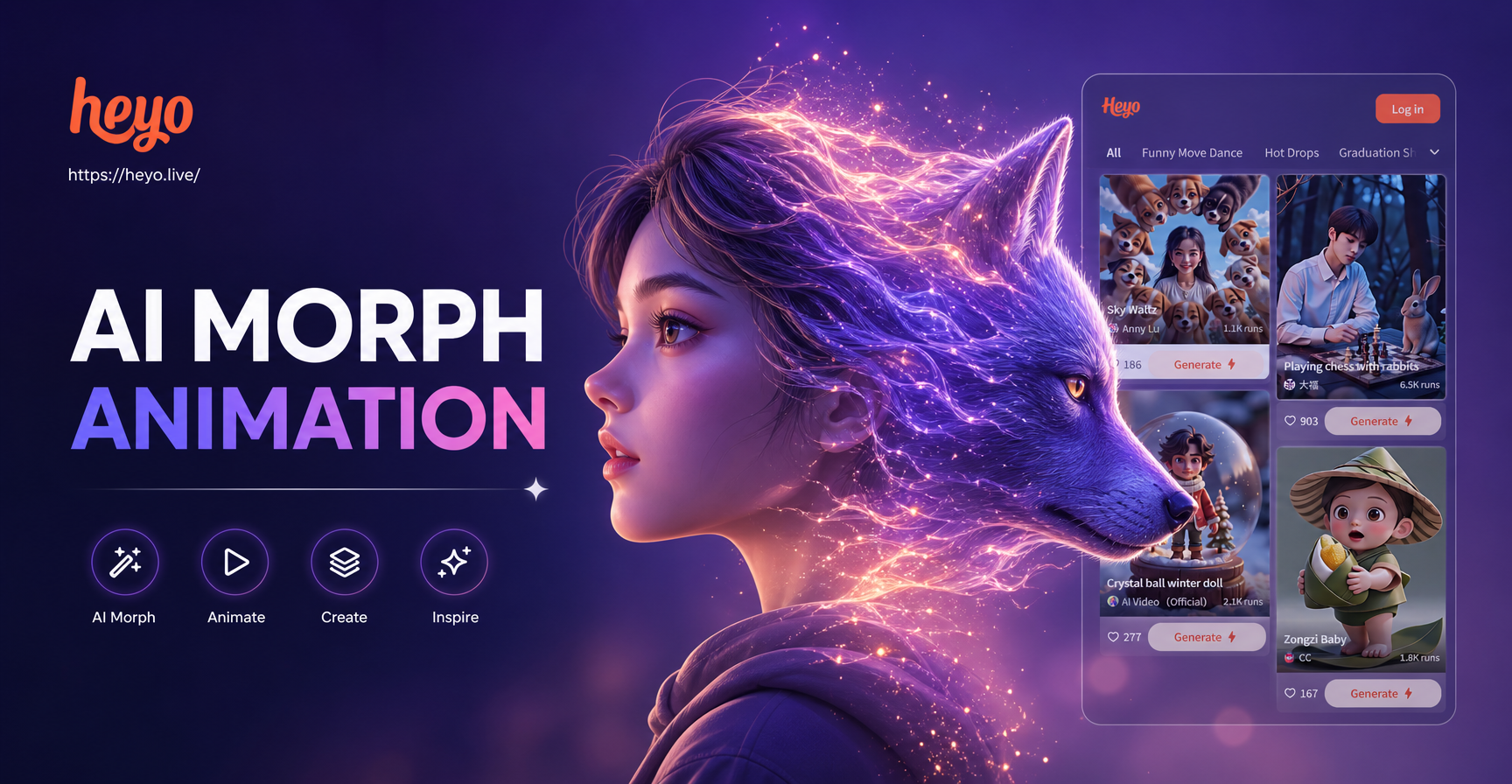
Create AI Morphing Animations Easily on Mobile
Add a Beard to Your Photo in Seconds Online
AI T-Shirt Design Maker | Create Custom Designs Instantly
Create Divine Art: AI Krishna Image Generator
Create AI Morphing Animations Easily on Mobile
Start Telling Your Story Visually
Don't let a great photo go without the perfect words. Add personality, context, and style with a single tap.
Start Telling Your Story Visually
Don't let a great photo go without the perfect words. Add personality, context, and style with a single tap.